


Ch6 Sec5.
COLOR
Ferret and PPLUS use colors stored by index. Storage indices 0 and 1 are used as window background and foreground colors. Indices 1 through 6 are reserved for lines. As the user makes SHADE and FILL requests, each color is assigned to the next available storage index beginning at 7, and that assignment is automatically "protected" when viewports or color overlays are added. MODE LINECOLORS may be used to define custom line colors, so if more than 6 colors are defined, the behavior changes accordingly.
If your SHADE and FILL commands request more colors than there are storage indices (256), you will be informed with an error message and the color behavior may become unpredictable. For example, if you have multiple viewports defined within a window you may run out of color storage indices. If you are using the same color palette(s) in each viewport, you can free up indices by canceling the color protections with PPL SHASET RESET. See the examples later in this section for details on removing color protection. Currently, there is no way to ask PPLUS how many colors it is using in a plot.
The following discussion is divided into a treatment of text and line colors, and a discussion of shade and fill color.
In the following discussion, "line color/thickness" is used as equivalent to "line style" for the sake of simplicity. However, if you are using a black and white printer, then the metafile translator will substitute a dash pattern for each line color. See Plotplus Plus: Enhancements to Plotplus to see monochrome line styles.
Ch6 Sec5.1.
Text and line colors
By default the background color is white and the text color is black. To reverse these, so the background is black, call the script "black.jnl". And to restore the white background, call "white.jnl". Black and white are the only colors that can be used for the background in classic Ferret.
PyFerret Only:
In PyFerret, set the background color and/or opacity with SET WINDOW /COLOR= /OPACITY=
Any color may be specified using RGB specifications or Ferret color names or numbers.
yes? go black
yes? ! ...plot commands...
yes? go white
yes? ! ...more plot commands..
Line type and color for plot commands are most easily controlled by the command qualifiers PLOT/COLOR=, PLOT/THICKNESS=, and PLOT/DASH in the Command Reference: PLOT section. Also see the description of "RIBBON" plots in that section for lines colored according to the value of a variable along the line.
For text, and optionally for plot lines, line type text colors are regulated by use of storage indices 1–6, each index associated with a default color. These are listed in the table in the section "PPLUS text and line color commands" below. It is possible to change the six available line colors with the PPLUS enhancements command COLOR. (See Plotplus Plus: Enhancements to Plotplus.) When you create a plot with multiple data lines, Ferret automatically draws each line in a different color. By default, axes, labels, and the first data line are all drawn in the same color. You can modify this behavior with the following Ferret and PPLUS commands.
Ch6 Sec5.1.1.
Ferret color controls for lines
Plotted line colors can be set using the /COLOR= qualifier on PLOT, CONTOUR, VECTOR, or POLYGON commands. The available colors are black, red, green, blue, lightblue, purple, and white. In addition, starting with Ferret version 5.4, the user has direct control over dashed lines, and can combine them with choices of colors and thickness.
Plotted colors and line type may also be set with the older syntax /LINE=n or /PEN=n, where "n" is an integer between 1 and 18 (or 3* the current number of line colors, see MODE LINECOLORS, below).
More direct control over line color and thickness is available with the qualifiers /COLOR and /THICKNESS and the line type is controlled with /DASH, /SYMBOL=, and /SIZE=
PyFerret
In PyFerret, the argument to the /COLOR= qualifier on PLOT, CONTOUR, VECTOR and POLYGON commands may also be specified as an (R,G,B) or (R,G,B,A) value.The values of R, G, B, and A go from zero to 100 and are the percent of red, green, blue, and opacity (alpha channel) for the color.If only R, G, and B are given, an opacity of 100 (opaque) is used.
yes? PLOT/COLOR=(30,60,80) myvar
While in classic Ferret the argument to /THICKNESS must be an integer value 1, 2, or 3, in PyFerret, the argument may be any positive real number.
Examples
1) Overlay three lines
yes? PLOT/i=1:10 1/i
yes? PLOT/OVER/COLOR=green/i=1:10 1/(i+3)
yes? PLOT/OVER/i=1:10/COLOR=purple/THICK=3 1/i+1/(10-i)
2) dashed lines with color and thickness settings
yes? PLOT/DASH/I=1:100 sin(i/5)
yes? PLOT/OVER/DASH=(0.3,0.1,0.3,0.1)/COLOR=RED/THICK/I=1:100 sin(i/7)
yes? PLOT/OVER/DASH=(0.6,0.2,0.1,0.2)/COLOR=RED/THICK/I=1:100 sin(i/9)
3) Symbols with color and thickness settings
yes? PLOT/THICK=2/I=1:100 sin(i/5)
yes? PLOT/OVER/COLOR=red/THICK=3/SYM=4/SIZ=0.10/i=1:100 sin(i/7)
yes? PLOT/OVER/COLOR=green/LINE/SYM=20/SIZ=0.15/i=1:100 sin(i/9)
HINT: White works only with the thin pen, for historical reasons having to do with the graphics code. An easy way to deal with this is to redefine a color to nearly-white,
yes? PPL COLOR,6,99,99,99   ! redefine pen 6 to be almost white
! Now you can do thick white lines or vectors:
yes? VECTOR/COLOLR=18 u,v
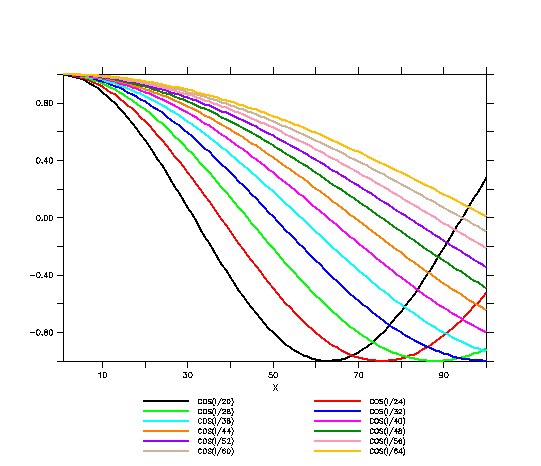
MODE LINECOLORS may be set to change the number of colors from the default of 6 to a larger number. The colors of the pens then may be set with the PPL COLOR command. (Note that a new setting for MODE LINECOLORS takes effect on the next new window - so if any plots have already been made, do a SET WINDOW/NEW.)
Example:
yes? SET MODE LINECOLORS:12
yes? SET WINDOW/NEW

yes? PPL COLOR,7,100,50,0 ! orange
yes? PPL COLOR,8,0,55,0 ! dark green
yes? PPL COLOR,9,60,0,100 ! purple
yes? PPL COLOR,10,100,60,70 ! pink
yes? PPL COLOR,11,80,70,60 ! tan
yes? PPL COLOR,12,100,75,0 ! yellow
yes? PLOT/THICK/I=1:100 \
 COS(i/20), COS(i/24), COS(i/28), COS(i/32), \
 COS(i/36), COS(i/40), COS(i/44), COS(i/48), \
 COS(i/52), COS(i/56), COS(i/60), COS(i/64)
Ch6 Sec5.1.2.
PPLUS text and line color commands
Older syntax uses the PPLUS command PEN to assign a color and thickness index to a specified pen. The pen colors are also used to set pen colors for labels (if more than 9 colors have been defined, see the section on Pen Selection for more options). The PPL PEN command takes the form:
yes? PLOT/SETUP var
yes? PPL PEN pen_#, color_thickness
yes? PPL PLOT
where pen_# is the PPLUS pen number and color_thickness is a color and thickness index.
PPLUS uses different pens for different tasks. By default, color_thickness index 1 is assigned to pen 0. The following chart may be helpful.
|
pen number |
default color_thickness index |
drawing task |
|
0 |
1 (black or white) |
axes and labels |
|
1 |
1 (black or white) |
first data line |
|
2 |
2 (red) |
second data line |
|
3 |
3 (green) |
third data line |
|
4 |
4 (blue) |
fourth data line |
|
5 |
5 (cyan) |
fifth data line |
|
6 |
6 (magenta) |
sixth data line |
Note: Whether you plot several data lines simultaneously, or use the /OVERLAY qualifier on your Ferret commands, the color/thickness result will be the same. But the Ferret/PPLUS interaction is different. When Ferret plots multiple data lines simultaneously, PPLUS automatically cycles through pen numbers 1 through 6 combined with symbols. Type GO line_samples in Ferret to see the 36 different line styles. However, if you are using /OVERLAY for additional data lines, Ferret controls the color_thickness assigned to pen 1 and PPLUS draws each overlay line with pen 1.
Pen numbers range from 0 to 6, and color_thickness indices range from 0 to 18. The values 1 to 18 follow the formula:
color_thickness = 6 * (thickness - 1) + color
where thickness ranges from 1 to 3 and color from 1 to 6. Type "GO line_thickness" in Ferret to see actual colors and thicknesses. Further information is in the appendix, "Ferret Enhancements to PlotPlus".
The special color_thickness index 0 refers to the background color, which produces "invisible" lines that can be used as "white-out" for special purposes. Pen 19 is a thin, white line which can be used to draw in white over a colored area. Thicker white lines are not available.
The following PPLUS commands use the color_thickness index.
|
Command |
Function |
|
@Cnnn |
uses color_thickness index "nnn" when embedded in a label (@c019 will draw in white) |
|
PEN |
sets color_thickness index for each data line (see chart above) |
|
LEV |
sets color_thickness index for contour plot lines (redundant with CONTOUR/LEVELS) |
Examples
1) Ferret's default behavior—these two plots will look identical
yes? PLOT/i=1:10 1/i, 1/(i+3), 1/i + 1/(10-i) !3 curves with 3 pens
yes? PLOT/i=1:10 1/i !first curve with pen 1
yes? PLOT/OVER/i=1:10 1/(i+3) !overlay with pen 1 (next index)
yes? PLOT/OVER/i=1:10 1/i+1/(10-i) !overlay with pen 1 (next index)
2) select different colors for pens 0 and 1
yes? PLOT/i=1:10/SET 1/i
yes? PPL PEN 1 4 !assign color_thickness 4 to pen 1 (plot curve)
yes? PPL PEN 0 3 !assign color_thickness 3 to pen 0 (axes & labels)
yes? PPL PLOT !render the plot
yes? PPL PEN 0 1 !reset pen 0 to default color_thickness (not\
reset by Ferret as is pen 1)
3) better way to do above plot:
yes? PLOT/i=1:10/LINE=4/SET 1/i !include line style with qualifer /LINE
yes? PPL PEN 0 3 ; PPL PLOT
yes? PPL PEN 0 1
yes? SHADE/L=1 sst
yes? LABEL/NOUSER 4,4,0,0,0.14 "@C019White Text"l
Ch6 Sec5.2. Shade and fill colors
Colors specified with the PPLUS SHASET command or in palette files (also called spectrum files) contain pre-defined color palettes. With Ferret 5.0 there are now three ways to specify how colors are set in SHADE, FILL, and POLYGON plots: the earlier Percent RGB mapping, and also By_value and By_level.
PyFerret Only:
Color palettes used by PyFerret can include an opacity value in each color definition.
For examples of these palettes, try the demo script,
yes? go palette_demo
There is also an FAQ about choosing palettes,
How can I choose a good color palette for my plot?
The Percent method defines points along an abstract path in RGB color space that runs from 0 to 100 percent. The palette file bluescale.spk, for example, contains these lines.
0 0 0 95
100 95 95 95
The first number on each line is the percentage distance along the path in color space, and the following numbers are the percents of red, green, and blue, respectively. In this simple two-line file, the percentage runs from 0 to 100 % and the colors represent a range of blues from dark to light. The percents in the first column must be in ascending order. The actual colors used by SHADE or FILL are determined by dividing this abstract color scale into N equal increments, where N is the number of colors, and linearly interpolating between the red, green, and blue values from the neighboring SHASET percentage points.
For compatibility with older palette files, the Percent RGB mapping method is the default, and pre-5.0 palette files will be interpreted correctly. Palette files using Percent RGB mapping written out with Ferret 5.0 will have a slightly different format. A starting line is optional, specifying "RGB_Mapping_Percent". Any line starting with a ! will be ignored as a comment line. Blank lines are ignored. for example the bluescale palette saved with Ferret 5.0 will look like this:
|
RGB_mapping Percent |
|||
|
! Level |
Red |
Green |
Blue |
|
0 |
0 |
0 |
95 |
|
100 |
95 |
95 |
95 |
The first line informs Ferret that the RGB mapping method is Percent. Lines beginning with an exclamation point are comments and ignored when read in—palette files created or modified using a text editor can contain comment lines as documentation. Note that palette files need to be unix-formatted files; values separated by tabs may not be read correctly.
The RGB mapping method By_value uses color interpolation similar to the Percent method, with the significant difference that colors are based on the values of the variable being plotted rather than an abstract zero to 100 percent axis. When you use the same By_value palette in several plots, identical values of one variable will be represented by the same color in each plot. Specify "RGB_Mapping_By_value" as the first line in the palette file. A line starting with a ! will be ignored as a comment line. Blank lines are ignored. The values in column 1 must be in ascending order. For example with the following palette, ocean_temp.spk:
|
RGB_Mapping By_value |
|||
|
!SetPt |
Red |
Green |
Blue |
|
.0 |
80.0 |
0.0 |
100.0 |
|
0.0 |
30.0 |
20.0 |
100.0 |
|
10.0 |
0.0 |
60.0 |
30.0 |
|
20.0 |
100.0 |
100.0 |
0.0 |
|
30.0 |
100.0 |
0.0 |
0.0 |
|
35.0 |
60.0 |
0.0 |
0.0 |
a particular temperature, say 25 degrees, will have the same color on a SHADE or FILL plot with levels ranging from 0 to 30, and on a plot with levels between 20 and 30 degrees.
The third RGB mapping method By_level allows the user to select the precise color to be used at each level in SHADE and FILL plots. Unlike the other methods, no interpolation of RGB values is done. Colors specified in the palette will be used exactly as defined. If there are more SHADE or FILL levels than colors specified, the color palette will repeat. Specify "RGB_Mapping_By_level" as the first line in the palette file. A line starting with a ! will be ignored as a comment line. Blank lines are ignored. The levels listedin column 1 must be in ascending order.In the following palette, by_level_rainbow.spk,
|
RGB_Mapping By_level |
|||
|
!Level |
Red |
Green |
Blue |
|
1 |
80.0 |
0.0 |
100.0 |
|
2 |
30.0 |
20.0 |
100.0 |
|
3 |
0.0 |
60.0 |
30.0 |
|
4 |
100.0 |
100.0 |
0.0 |
|
5 |
100.0 |
0.0 |
0.0 |
|
6 |
60.0 |
0.0 |
0.0 |
for example, with 6 colors defined and used in a plot with 10 levels, the colors used at each plot level will be as follows:
|
Plot level |
Color |
|
1 |
1 |
|
2 |
2 |
|
3 |
3 |
|
4 |
4 |
|
5 |
5 |
|
6 |
6 |
|
7 |
1 |
|
8 |
2 |
|
9 |
3 |
|
10 |
4 |
Ch6 Sec5.2.1.
Ferret shade and fill color controls
By default, Ferret will use the PPLUS spectrum file default.spk for shades and fills (normally default.spk is a Unix soft link to rnb.spk). Ferret comes with many color palettes. The UNIX command "Fenv" lists the environment variable $FER_PALETTE which is a list of paths to be searched for palette files (the palette file names all end in .spk). The UNIX command "Fpalette" allows you to find and examine these files (type "Fpalette -help" at the Unix prompt). You can easily create your own palette files with a text editor.
Use the Ferret qualifier /PALETTE= with Ferret graphical output commands CONTOUR/FILL and SHADE to specify a color palette. See the section in this chapter, Contouring, for details on the CONTOUR qualifier /LEV, which controls colors and dash patterns, as well as sets contour levels.
Ferret qualifiers

/PALETTE= (alias for PPL SHASET SPECTRUM=)
/LEV=
KEYMARK,1 ! Turns on annotation of the ends of the color key with
 ! the minimum and maximum values of the data on the plot
PALETTE is also a stand-alone command alias; it sets a new default color palette.
Be aware that when you use /PALETTE= in conjunction with /SET_UP, the color spectrum you specify becomes the new default palette; to restore the default palette use command PALETTE with no argument.
Ch6 Sec5.2.2.
|
Command |
Function |
|
SHASET |
|
|
SHAKEY |
Customizes color keys. |
SHASET is an enhancement of PPLUS designed for Ferret. You can specify a color spectrum, save a spectrum, change an individual color in the spectrum, or remove the protection (PPL SHASET RESET) for colors already on the screen. See Plotplus Plus: Enhancements to Plotplus for more information.
If you need precise control over each individual RGB color on your plot, run "GO exact_colors", which contains instructions on modifying individual colors in a palette using SHASET.
The SHAKEY command allows you to customize the location, size and labelling of the color key for SHADE and FILL plots.
The last argument to SHAKEY (new with Ferret v6.2), turns on annotation of the shade key. This puts the minimum and maximum value of the data field, at each end of the color key. The Ferret alias KEYMARK can be used to turn this feature on and off. The KEYMARK setting persists in the Ferret session until it is changed with another KEYMARK command.
yes? KEYMARK,1  ! turns on key annotation
yes? KEYMARK,0  ! turns it off
For more about setting color levels, see the section in this chapter, Contouring.
Examples
1) Look at the relief of the Earth's surface
yes? SET DATA etopo20
yes? SHADE rose !Ferret's default plot
yes? ! Emphasize land and sea with palette,customize the color key

yes? SHADE/PALETTE=land_sea/SET_UP rose palette
yes? PPL SHAKEY 1,0,,, , ,1.2,7.2,7.5,8.2,1
yes? PPL SHADE

yes? KEYMARK,1 ! turn on the key annotation

yes? ! Use open-ended color levels
yes? FILL/PALETTE=land_sea/LEV=(-inf)(-6000,6000,500)(inf) rose
2) Perhaps you would like to compare two topography resolutions. To illustrate what happens when you use more colors than are available, request an excessively large number of levels:
yes? SET DATA etopo120
yes? SET REGION/Y=-20:20
yes? SET VIEWPORT UPPER !upper half
yes? SHADE/LEV=(-8000,8000,100) rose !160 colors, default palette
yes? SET VIEWPORT LOWER !lower half
yes? SET DATA etopo20 !high resolution
yes? SHADE/LEV rose[d=etopo20] !another 160 colors (320 > 256!)
yes? CANCEL VIEWPORT

PPL+ error: You're attempting to use more colors than are available.
Using SHASET RESET to re-use protected colors may help.
If you reuse the same palette, as in this example, issue PPL SHASET RESET after the first plot. Now the second picture is made without error:
yes? SET DATA etopo120
yes? SET REGION/Y=-20:20
yes? SET VIEWPORT UPPER
yes? SHADE/LEV=(-8000,8000,100) rose
yes? SET VIEWPORT LOWER
yes? PPL SHASET RESET !reuse color storage indices
yes? SET DATA etopo20
yes? SHADE/LEV rose[d=etopo20]
yes? CANCEL VIEWPORT